Product
The product
One API that runs the whole check: consent, the searches, the report, the paperwork. Your app calls it; your providers do the rest on their phone.
Request
POST /v1/checks
{
  "provider": { "email": "maya@example.com" },
  "package": "care_standard"
}Response201 Created
{
  "id": "chk_8Rq2",
  "status": "consent_sent"
}
An example check. Names are made up.
How a check runs.
Five steps, from sign-up to a signed report.
- Your app orders it. When a provider signs up, the check starts on its own: one call to
POST /v1/checks. - The provider says yes. They sign consent and confirm their identity with their ID and a live selfie, in your brand. Nobody signs for them.
- We check it at the court. An analyst confirms every record and signs the report.
- Your team can ask. Questions go to the person who ran the check.
- Your agents can help. They order checks and explain delays. People decide.
Step 1
You create a check
When Maya signs up to tutor
POST /v1/checksStep 2
Maya gives consent
We send the link in your brand
check.consent_signedStep 3
We check the courts
Live status, court by court
check.updatedStep 4
ClearedClear
Signed by Dana Ortiz, analyst
check.completed
The checks.
Every search a marketplace check needs, in one call.
Live ID and identity and address history run on every check. The address history decides which county courts to search. Add the driving record for drivers. Ongoing monitoring is coming.
- Live ID verificationThe provider’s ID and a live selfie, on their phone.Every check
- Identity and address historyNames and addresses, which decide where to search.Every check
- National criminal databaseA wide first pass. Possible records go to the court.
- County criminal recordsThe court in each county the provider has lived in.
- Statewide and federal recordsState repositories and federal district courts.
- Sex offender registryEvery state’s public registry.
- Global watchlistGovernment sanctions and watch lists.
- Driving recordThe state motor vehicle record, for drivers.Add-on
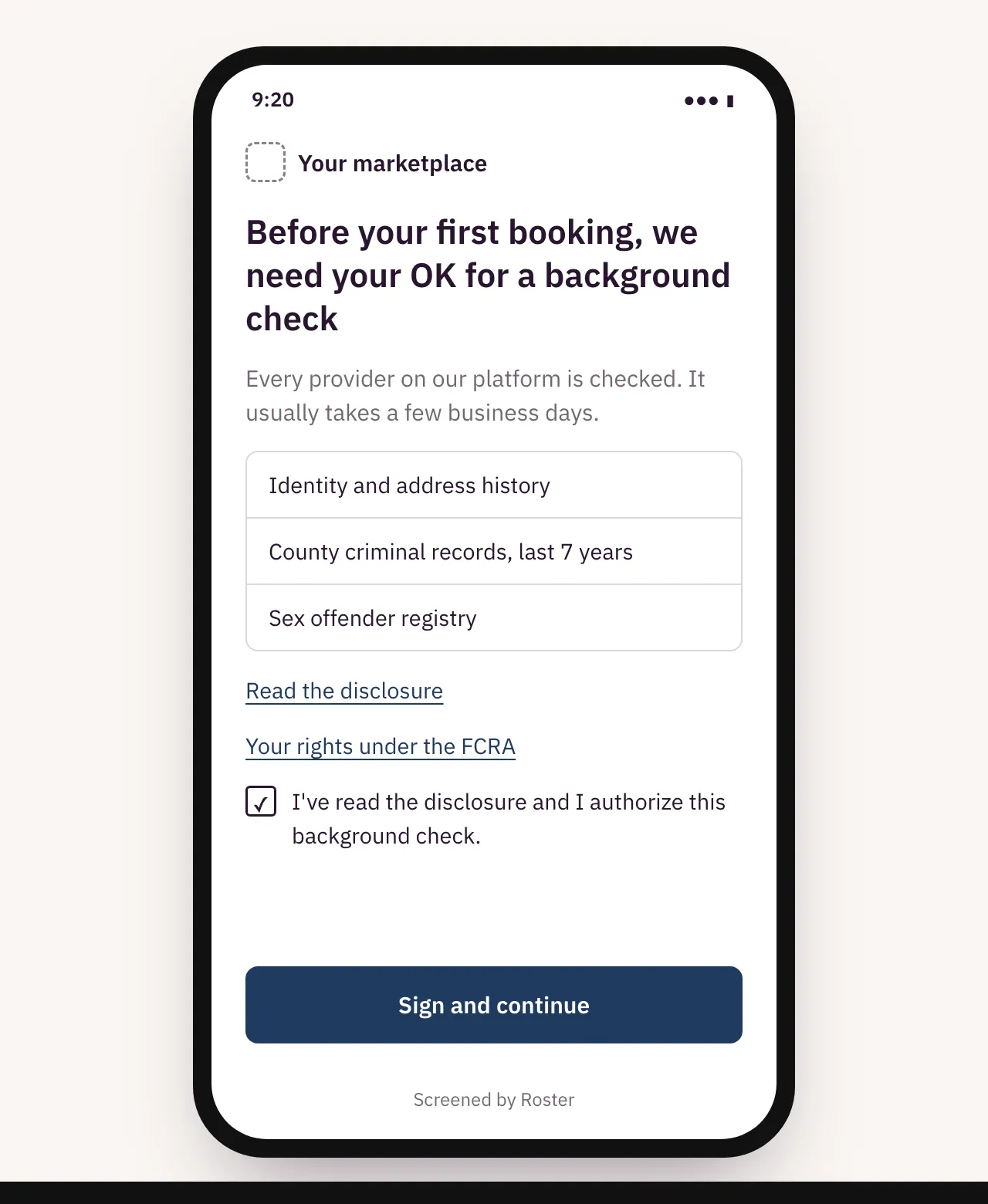
Consent and live ID, in your brand.
The provider signs and confirms their ID on their phone.
Roster hosts the disclosure and consent screens with your logo and colors, and “Screened by Roster” underneath. The provider reads the disclosure, signs, then takes a photo of their ID and a quick selfie.
The result comes back as a field on the check and as the check.consent_signed webhook. An agent can send the link; only the provider can sign.
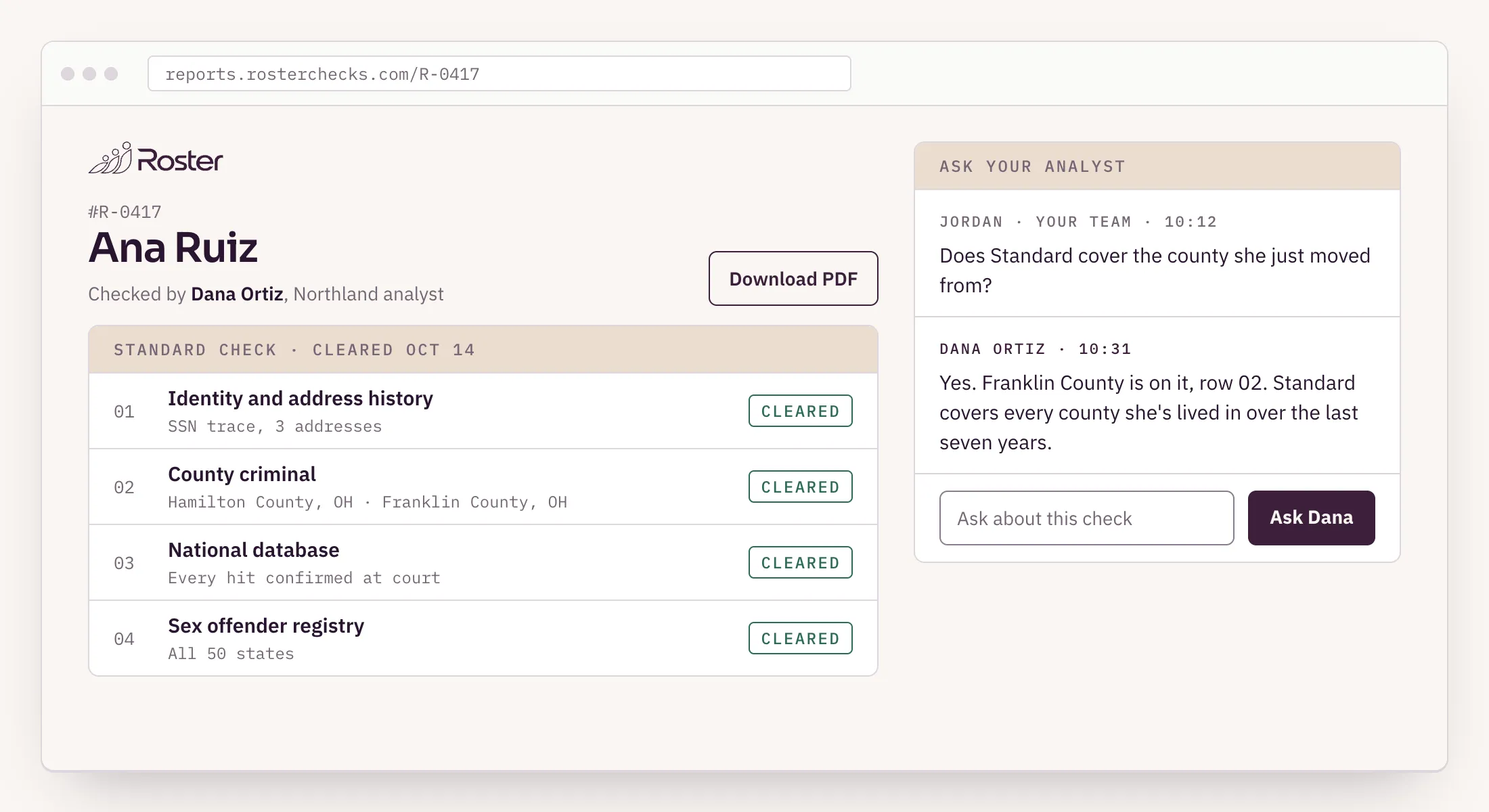
A report page and PDF, signed by an analyst.
Your ops team opens a link. No dashboard to learn.
A named analyst matches every possible record to the person. Each one is confirmed at the court before it’s reported, on every package. The analyst signs the report, and the report page shows each search, the court it was checked at, and who checked it.
The same report downloads as a PDF for your files. Questions go to the analyst who ran the check, from the report page.
Status your app and agents can ask for.
Nothing for your ops team to chase.
Status comes by API, by webhook (check.updated, check.completed) and through the MCP server. Each search reports its own state and the court it is waiting on.
explain_status returns one plain sentence you can pass straight to the provider: their first name, the court, and when to expect it.
- Live IDConfirmed
- National criminal databaseConfirmed
- Sex offender registryConfirmed
- County criminal · Hamilton County, OHSearching
explain_status
“Maya, your check is waiting on Hamilton County court. That usually takes one more business day.”
Compliance materials, ready to send.
We prepare. You send and decide.
The API returns the disclosure, the provider’s state notice, and the pre-adverse and adverse letters with the waiting-period dates filled in. A webhook fires when each step is due.
Adverse action waits for a person on your team to approve it. Contractors get the same notices and letters as employees. You get a record of every check.
- Disclosure and consentSigned on the provider’s phone, with the live ID stepSignedOct 12
- State noticeFor the provider’s stateReady to send
- Pre-adverse letterReport and summary of rights attachedReady to send
- Waiting periodWebhook when it endsEnds Oct 21
- Adverse letterHeld until a person on your team approvesNeeds approval
Keys and scopes.
Each service and each agent gets only the access it needs.
Sandbox keys come without a sales call. Live keys follow a short credentialing call. Give your onboarding service a key that can start checks, your ops tools a key that can read reports, and your agents a status-only key.
A status-only key can start checks and explain status. It can’t read a report, and no key can approve adverse action. What agents can and can’t do.
| Key | Scopes |
|---|---|
sk_test_…Onboarding service | checks:write, checks:read, webhooks:manage |
sk_test_ops_…Ops tools | checks:read, reports:read |
sk_test_status_…Your agents | checks:write, checks:read |
What Roster handles
Sandbox keys right away, no sales call. Live keys after a short credentialing call.
- One call starts a check. Hosted consent and live ID in your brand; a webhook when it’s done. Sandbox keys without a sales call.
- Status by API, webhook and MCP. explain_status says which court it’s waiting on and when to expect it.
- A named analyst matches every possible record to the provider and confirms it at the court before it’s reported. A signed report page and PDF your team can open.
- Every notice and letter prepared, with the waiting-period dates filled in, and a human approval gate before adverse action.
- You send the notices and make the final call. Contractors covered the same way as employees.
Reviewed November 5, 2026 by Ben Drellishak, Owner.